
Class Roster

In addition to viewing your class roster in CatCourses, faculty can also use BLink (Self-Service Banner Link) to view their class roster, which includes additional information about each student enrolled. The additional information includes student major (and emphasis) and class level (FR, SO, JR, SR). This can also be used to email students in the course. 

View Class Roster Detail View

Email Students in your Course

View Class Roster Detail View

To view your class roster in BLink to include the student major information follow these steps.

1. Log into connect.ucmerced.edu/

2. Go to MyMerced

3. Click on BLink

4. Choose "Class List"
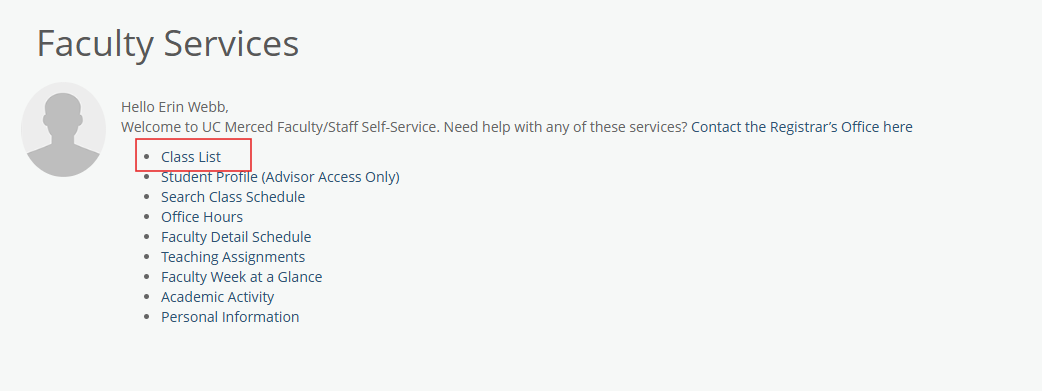
Screenshot of the UC Merced Faculty/Staff Self-Service “Faculty Services” page. The page includes a welcome message addressed to Erin Webb and a list of faculty service links. A red rectangle highlights the “Class List” link within the navigation menu. Other visible links include Student Profile (Advisor Access Only), Search Class Schedule, Office Hours, Faculty Detail Schedule, Teaching Assignments, Faculty Week at a Glance, Academic Activity, and Personal Information. A generic user profile icon appears on the left side of the page.

5. Select term and click on the white space next to the course roster you want to view.
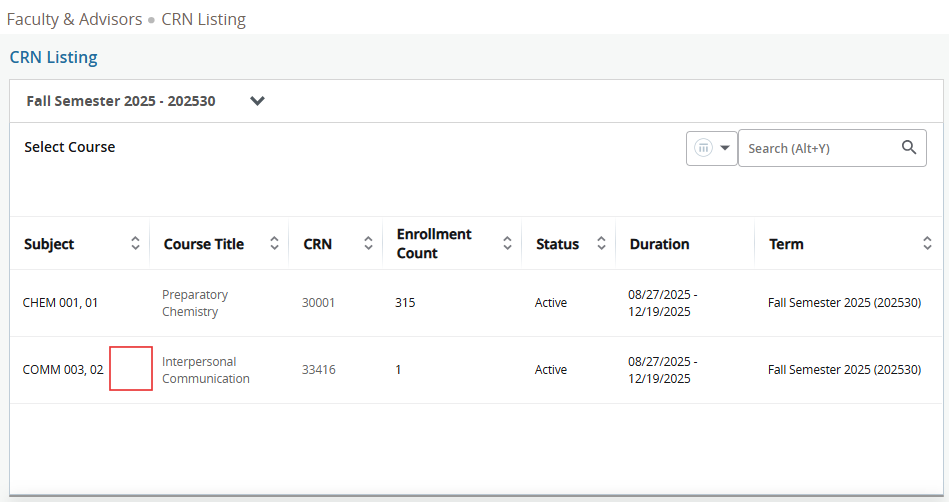
Screenshot of the UC Merced Faculty & Advisors “CRN Listing” page for Fall Semester 2025 (202530). The page displays a table of courses with columns for Subject, Course Title, CRN, Enrollment Count, Status, Duration, and Term. Two courses are listed: CHEM 001, 01 – Preparatory Chemistry with an enrollment count of 315, and COMM 003, 02 – Interpersonal Communication with an enrollment count of 1. A red rectangle highlights a selectable area next to the COMM 003, 02 course listing. Search and filter controls appear in the upper-right corner of the page.

6. The default view with BLink class roster is the "Summary View". You can also change this view to "Detail View".
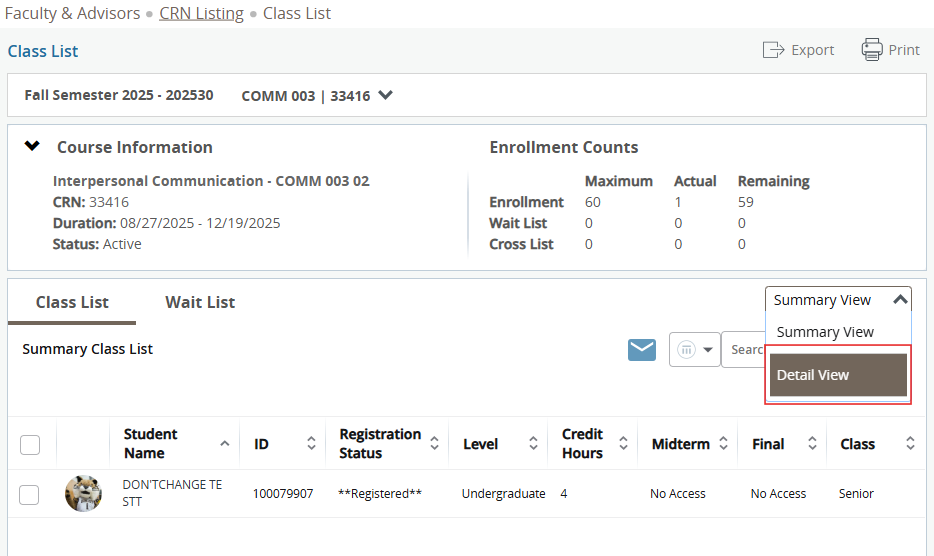
Screenshot of the UC Merced Faculty & Advisors “Class List” page for COMM 003, section 02, during Fall Semester 2025 (202530). The page displays course information for Interpersonal Communication, including CRN 33416, course dates from August 27, 2025 through December 19, 2025, and active status. Enrollment counts show a maximum enrollment of 60 students, with 1 student currently enrolled and 59 seats remaining. Below the course information is a summary class list table displaying one enrolled student and columns for student information, registration status, level, credit hours, midterm access, final access, and class standing. A dropdown menu on the right side of the page is expanded, showing “Summary View” and “Detail View” options, with “Detail View” highlighted by a red rectangle.

7. From there, a detailed view of each student enrolled will appear. The detailed view provides these data points. 
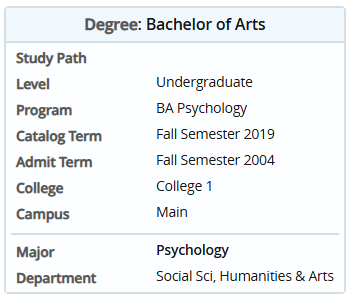
Screenshot of a student degree information panel titled “Degree: Bachelor of Arts.” The panel displays academic details for an undergraduate student in the BA Psychology program. Information shown includes Catalog Term: Fall Semester 2019, Admit Term: Fall Semester 2004, College: College 1, Campus: Main, Major: Psychology, and Department: Social Sciences, Humanities & Arts.

Unfortunately, the view that contains student major cannot be exported. If you need this information in excel format, you will need to work with your School's curriculum team. 

Email Students in Course

To view your class roster in BLink and email students, follow these steps.

1. Log into connect.ucmerced.edu/

2. Go to MyMerced

3. Click on BLink

4. Choose "Class List"

Screenshot of the UC Merced Faculty/Staff Self-Service “Faculty Services” page. The page includes a welcome message addressed to Erin Webb and a list of faculty service links. A red rectangle highlights the “Class List” link within the navigation menu. Other visible links include Student Profile (Advisor Access Only), Search Class Schedule, Office Hours, Faculty Detail Schedule, Teaching Assignments, Faculty Week at a Glance, Academic Activity, and Personal Information. A generic user profile icon appears on the left side of the page.

5. Select term and click on the white space next to the course roster you want to view.

Screenshot of the UC Merced Faculty & Advisors “CRN Listing” page for Fall Semester 2025 (202530). The page displays a table of courses with columns for Subject, Course Title, CRN, Enrollment Count, Status, Duration, and Term. Two courses are listed: CHEM 001, 01 – Preparatory Chemistry with an enrollment count of 315, and COMM 003, 02 – Interpersonal Communication with an enrollment count of 1. A red rectangle highlights a selectable area next to the COMM 003, 02 course listing. Search and filter controls appear in the upper-right corner of the page.

6. Select the student(s) you want to email or use the check box in the header row to select all students. Once you have the students selected, use the mail icon. 
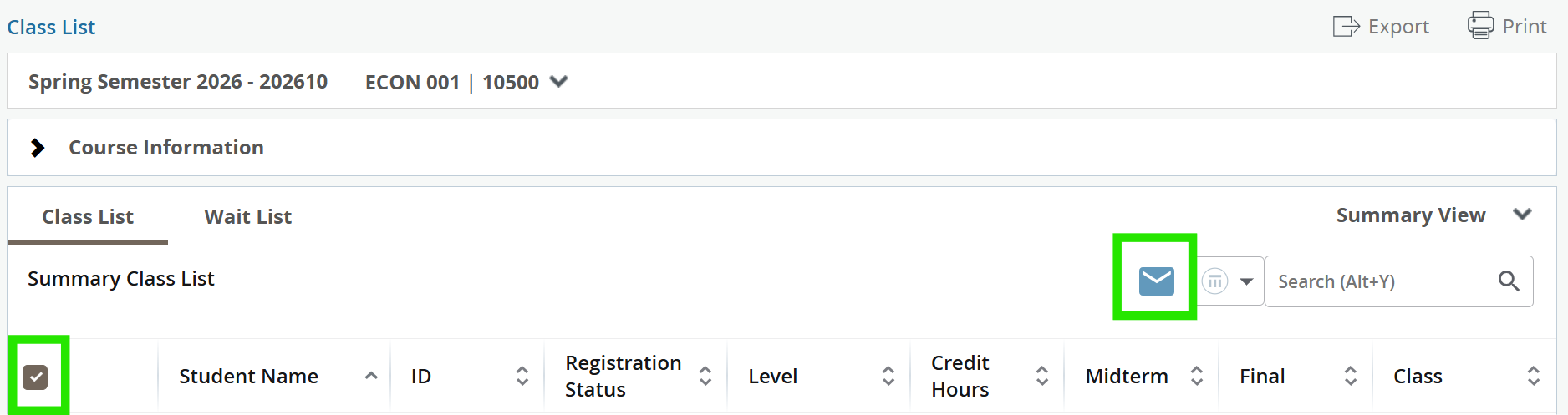
Screenshot of the UC Merced “Class List” page for ECON 001, CRN 10500, during Spring Semester 2026 (202610). The page includes tabs for “Class List” and “Wait List,” with the “Class List” tab selected. A table below displays column headers for Student Name, ID, Registration Status, Level, Credit Hours, Midterm, Final, and Class. Green rectangles highlight two interface elements: a checkbox on the left side of the table used to select students, and an envelope icon near the search bar used for email or communication functions. Export and Print options are displayed in the upper-right corner of the page.

7. When the mail icon is selected, your default email browser will populate with the student email addresses in the BCC line. There is currently a limitation of 80 students who can be emailed at a time.
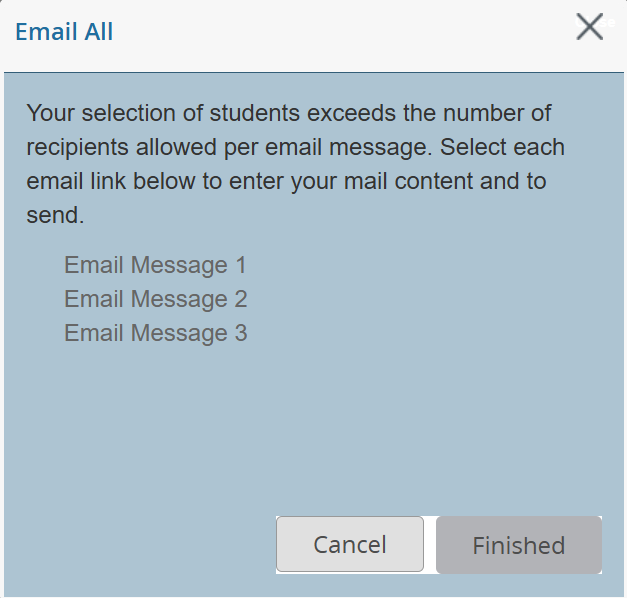
Screenshot of an “Email All” pop-up window within the UC Merced class list system. The message explains that the selected number of students exceeds the allowed number of recipients per email message and instructs the user to select individual email links to compose and send messages. Three selectable links are displayed: “Email Message 1,” “Email Message 2,” and “Email Message 3.” At the bottom of the window are “Cancel” and “Finished” buttons, and a close “X” icon appears in the upper-right corner.