
Comprehensive Guide to Registration
Important Registration Dates
- April 6 - 17, 2026: Online registration for continuing students for Fall 2026 classes
- June 22 - 26, 2026. Online registration for first year and transfer students for Fall 2026 classes
You will register for classes on the connect.ucmerced.edu platform. You will choose courses based on your major, previous course-work (college, AP, IB), and placement exam scores.
This website provides how-to resources for navigating the online registration system, and alert you to other requirements to ensure you are prepared for registration. More information about how to choose classes can be found here:
- Bobcat Advising Center (all first year students and undeclared transfers)
- Engineering Academic Advising
- Natural Sciences Academic Advising
- School of Social Sciences, Humanities and Arts
You can check your registration appointment under MyRegistrationTime, Prepare for Registration on the portal. Generally, registration remains open for schedule changes 24 hours a day and 7 days a week after your priority registration appointment time.
On this page:
- When Can I Register for Classes?
- Video: How to Register for Your Classes
- Step 1: Building a Class Schedule
- Step 2: Registering for Classes
- Step 3: Viewing Your Class Schedule
- Troubleshooting: Common Registration Errors
- About Registering for Math 5
- About Placement Exams
- Registration Resources
- Contact an Academic Advisor
When Can I Register for Classes?
You will register for classes on the UC Merced Connect Platform, based on your predetermined appointment time.
Click on the “My Registration” icon and then select "Prepare for Registration".
More dates & deadlines:
- Visit the Admissions website for a summary of important dates & deadlines (new students)
- Visit the Students First Center comprehensive calendar of dates & deadlines (continuing students)
Video: How to Register for Your Classes
Step 1: Building a Class Schedule
- Determine which courses to take. In general, courses should be taken in sequence. For example, if you are currently taking CHEM 2, you should take CHEM 10 the following semester.
- Consult the Schedule of Courses at http://registrar.ucmerced.edu/go/schedule to ensure that the courses you want to take will be offered.
- Begin constructing your schedule. Note the following:
- Most courses have multiple components, such as lecture, discussion, and/or lab. Be sure to include all of the required components. These are considered “Linked” sections. You can view all required components by selecting the “View Linked” icon within the course schedule.
- Select lecture times first, then discussions and/or labs for each course.
- Record the 5-digit CRN for each component of each course.
See screenshots below:

Screenshot: Most courses have multiple components, such as lecture (LECT) and discussion (DISC). The "Schedule" Grid tab includes class meetings and final exam periods in the same calendar view with no distinction of date ranges. See the Schedule Details tab for date range distinctions.
Step 2: Registering for Classes
- Log on to the UC Merced Connect Platform and click on My Registration Icon.
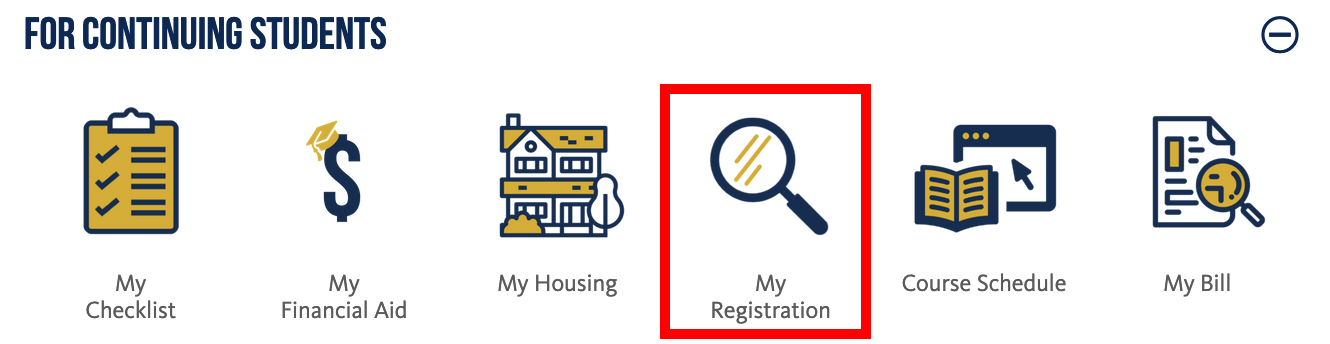
Screenshot: Log on to https://connect.ucmerced.edu/student/mymerced/_/mymerced, then select the my Registration Icon. - To register for courses, select Register for Classes.

Screenshot: Select Register/Add Drop Classes - Select the appropriate term. There are three areas included on this screen: 1) Find Classes (or Enter CRNs), 2) Summary, and 3) Schedule. Under Find Classes, you can search for courses you want to register for or you can use the Enter CRN tab to enter the CRNs directly. The Summary area will provide a summary where you will take action to add, drop, or remove a course. Within the Schedule area, you can view your week at a glance for all registered courses.

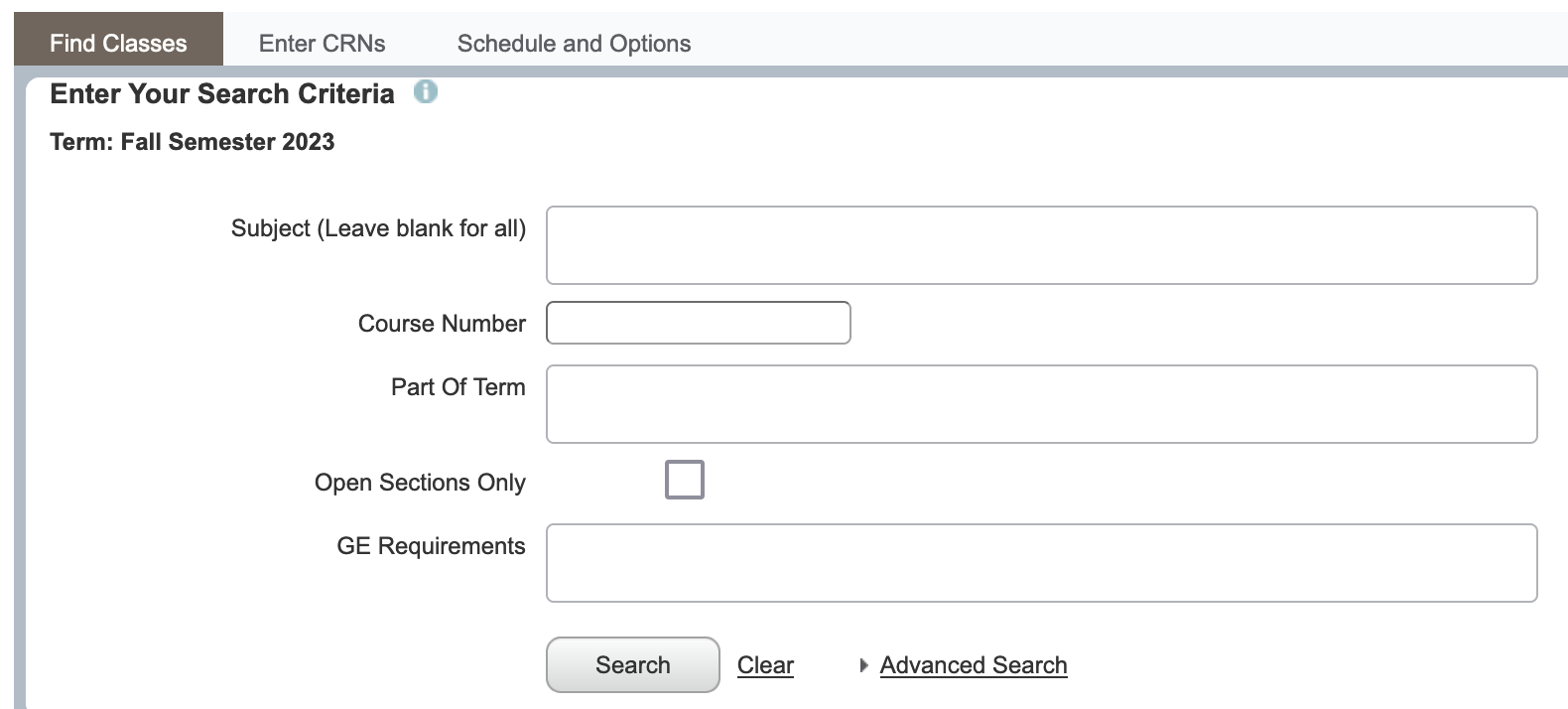
 Screenshot: You must input all associated CRNs (lecture, discussion and/or lab) for a course at the same time. The "Schedule" Grid tab includes class meetings and final exam periods in the same calendar view with no distinction of date ranges. See the Schedule Details tab for date range distinctions.
 - Don't forget to click submit and verify that you successfully registered for each course. If you have successfully registered for a course, "Registered" will be displayed in the Status column.
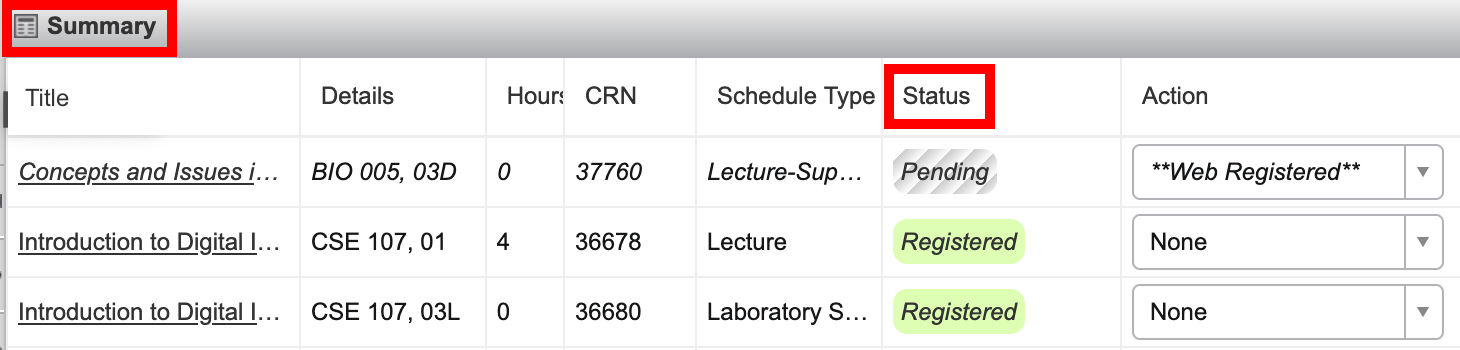
Screenshot: If you have successfully registered for a course, "Registered" will be displayed in the Status column.
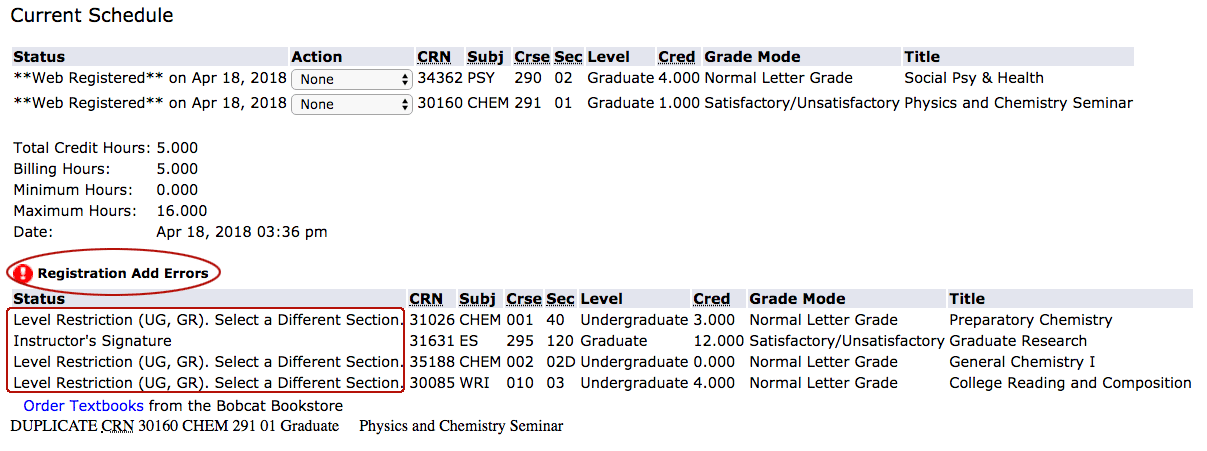
- If you encounter errors, pay close attention to the top right corner. More information about common errors can be found here: https://registrar.ucmerced.edu/registration-help-page/registering-classes/registration-errors

Screenshot: Registration errors will appear in the top right corner. The "Schedule" Grid tab includes class meetings and final exam periods in the same calendar view with no distinction of date ranges. See the Schedule Details tab for date range distinctions.

Step 3: Viewing Your Class Schedule
- After successfully registering for your classes without any holds or errors you can see an overview of your schedule. Select Registration at the top of the screen.
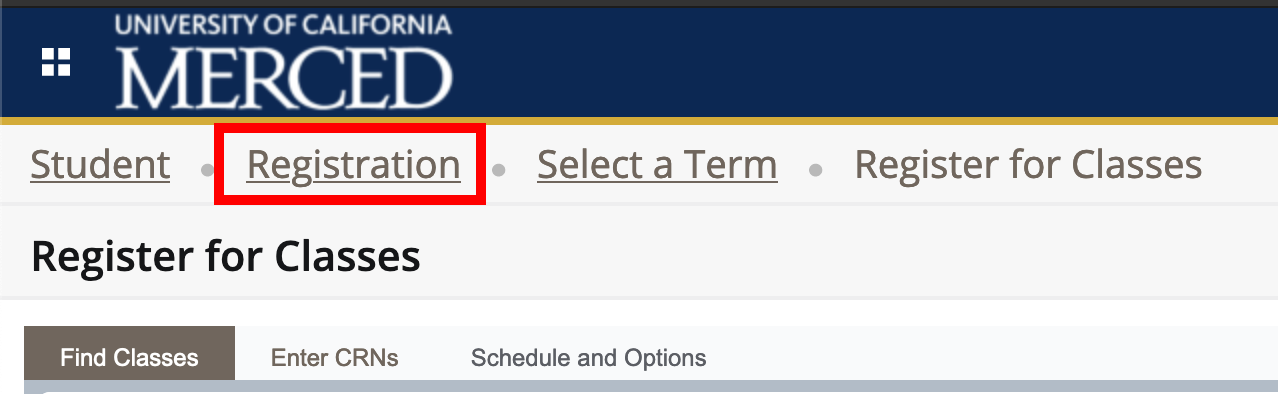
Screenshot: Click on Select a Term to see detailed information about your classes.
- In the View Registration Information, you can select a term to see detailed information about your classes, including the days, times, locations, instructors and more.


Screenshot: View of Summary.
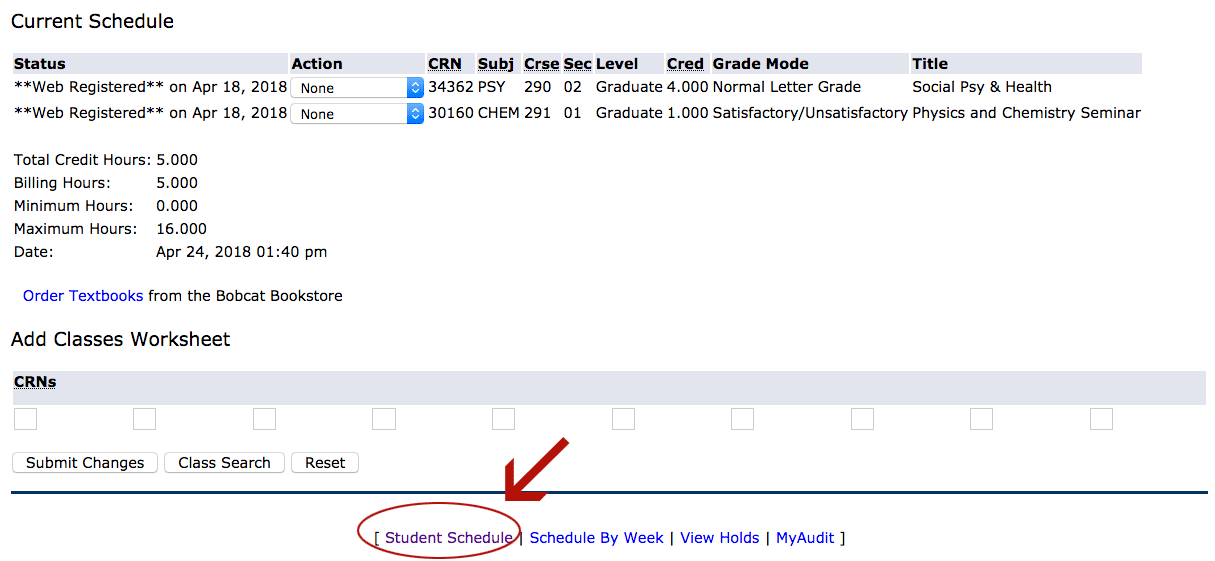
Troubleshooting: Common Registration Errors
More information about common linking errors can be found here: https://registrar.ucmerced.edu/registration-help-page/registering-classes/registration-errors
Linking Error
You may get a "Linked Course Required" error if you have not enrolled for all parts of a course. For example, a course lecture (LECT) may be linked to a corresponding lab (LAB) and discussion (DISC). You must enroll in all components of a course at the same time.
Tips to avoid this error:
- You must enroll in all parts of the class (lecture, discussion, lab, etc.)
- For each lecture, there are a list of discussions that you can enroll in, choose one discussion section that is open. Choose view linked to view linked sections. Here is an example:

Screenshot: You may get a linking error if you do not enroll in all components of a course (i.e., LECTURE and D) - There are some courses (i.e., Phys 008, Chem 002 and Phys 009) that have paired discussions and labs. For each lecture, you will need to enroll in a paired discussion and lab section. Here is an example:
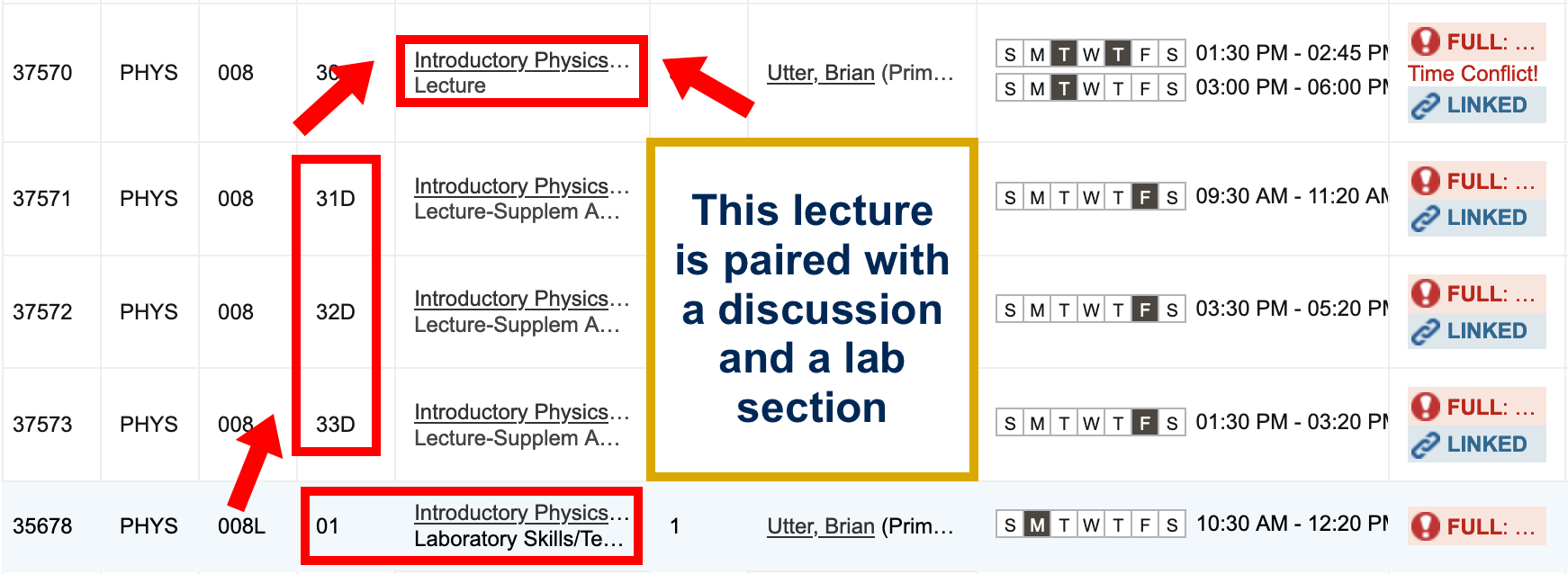
Screenshot: Lectures (LECT) may be linked to paired discussions (D) and labs (L)
Major Restriction Error
You may get a "Major, Minor or Concentration Restriction" error if a course you are trying to add requires you to be declared in a certain major. You should choose another course or contact your advisor for assistance.
Tips to avoid this error:
- Find out which courses are restricted by major in the course schedule at registrar.ucmerced.edu/go/schedule. Select the hyperlinked Title for a course to view course details.

Screenshot: Select the hyperlinked Title to view course details
- The course detail view will show any major restrictions:

Screenshot: Class details/restrictions view will describe major restrictions


Prerequisite Error
You may get a "Prerequisite Not Completed" error if the course you are trying to register for requires you to complete another course first.
Screenshot: Prerequisite requirements can cause registration add errors
Tips to avoid this error:
- To see prerequisites for a specific course, select the hyperlinked CRN in the course schedule found at registrar.ucmerced.edu/go/schedule. You can also view the University Catalog for course prerequisites. Contact your academic advisor if you need assistance.

Screenshot: Select the hyperlinked CRN to view course details
Time Conflict Error
You may get a "Time Conflict" error if you are trying to register for two courses scheduled at the same time, or if the final exam time for one course is the same time as another. Remember, a time conflict may be with a lecture, discussion, lab or final exam.
Tips to avoid this error:
- Try to register for another open section of the same course, or register for a different course.
- You can complete a Time Conflict Override Form. Be sure to contact your academic advisor if you have any questions.
About Registering for Math 005
MATH 005 is a hybrid course which means that students will only be attending their chosen discussion sections. In order to register for MATH 005, you must register for both a course CRN and a corresponding discussion section CRN. Disregard the “TBD” for the lecture time.
See screenshot:

Screenshot: To register for Math 005, enter both a course CRN and a corresponding discussion CRN.
About Placement Exams
Chemistry, Computer Science and Engineering (CSE), Math, and Writing Placement Exams
- Placement exams for incoming students must be completed by June. If you do not take the required exams by the deadline, you will be placed into preparatory-level chemistry, CSE, math, and writing courses.
- If you took a placement exam at UC Merced, you can view your score in connect through My Student Record. From there, choose Student Profile then Testing.
- More information about course placements based on AP tests, IB tests, and UC Merced placements exams can be found here: https://registrar.ucmerced.edu/resources/registration-help/registration/test-scores-and-placement-exams
Change of Major
OPTIONAL - Change your major (Fall First Year Students Only)
Contact your Bobcat Advising Center academic advisor if you have questions about taking courses for your intended major.
Registration Resources
Weekly Schedule Planning Worksheet
Plan out your weekly course schedule to prevent time conflicts with classes.
- Download: Weekly Schedule Planning Worksheet (pdf)
MyDegree Path
Plan the courses you need to take for current and future semesters to stay on track to graduate on time.
- Visit: MyDegree Path
University Catalog
Find in-depth information about degree requirements, course information, and academic policies. NOTE: Incoming fall 2023 students, your catalog year will be 2023-24. This new catalog that applies for all incoming First Year and Transfer students will be available in June.
- Visit: University Catalog
Office of the Registrar
The Office of the Registrar's website provides information on the academic calendar, course scheduling, academic policies and enrollment verification.
- Visit: Office of the Registrar
Contact an Academic Advisor
See Who is My Academic Advisor? for the best academic advising contact.
Self-Service Dashboard Registration Documentation
Screen shots of the new Self-Service Dashboard registration module.
